
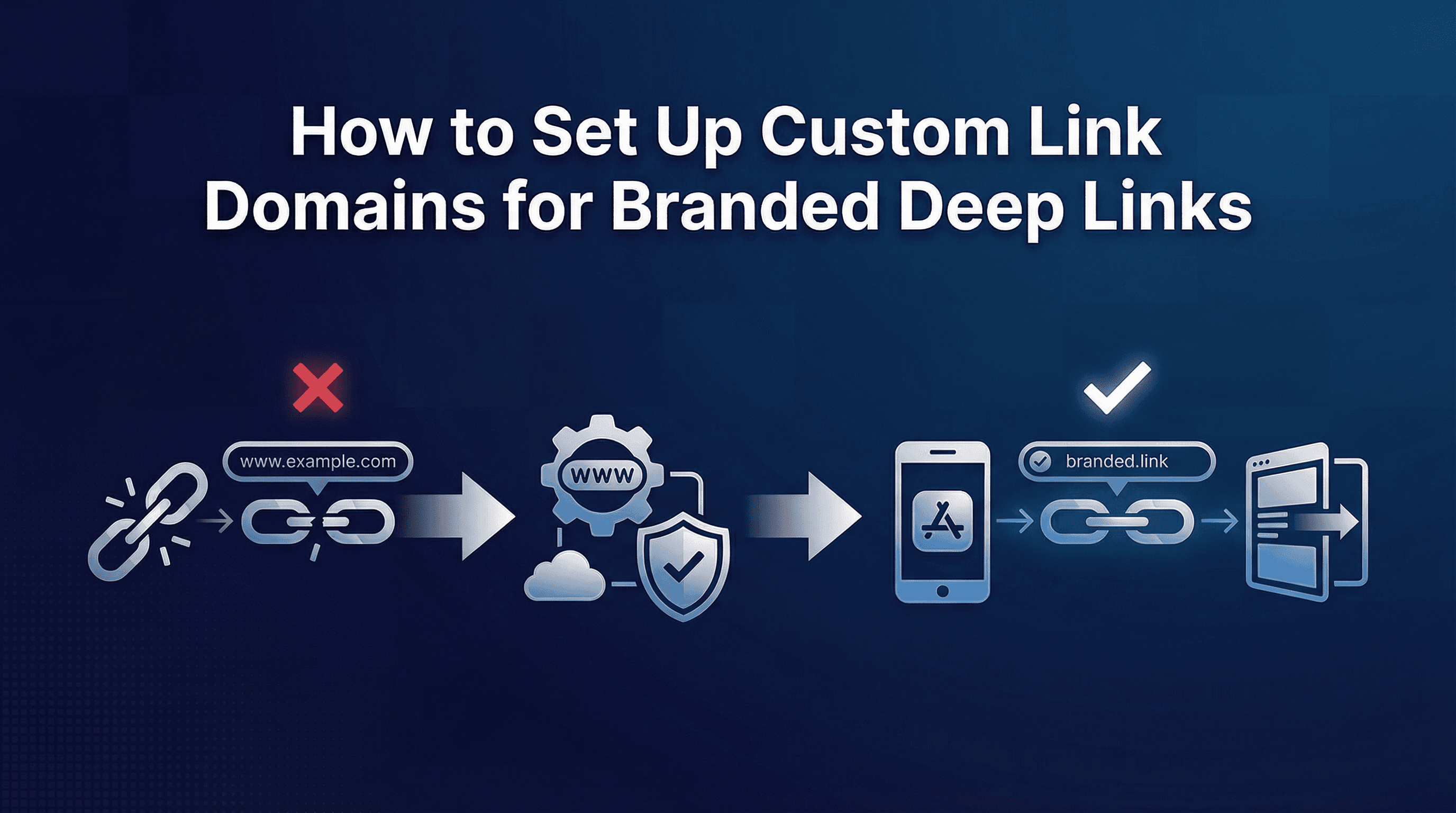
The default link domain that ships with most deep linking tools looks neutral to you. To your users, it looks suspicious.
Branded short links consistently outperform generic tool domains in click-through rate across email, SMS, and push notification channels. The lift is not purely aesthetic. Users have trained themselves to recognise trusted domains over years of phishing warnings, and unrecognised URL patterns trigger caution at precisely the moment you need them to tap through. When your campaign link reads go.yourapp.com instead of app.link/abc123, the trust signal is immediate.
Setting up a custom domain for deep links is a one-time engineering task that pays dividends across every campaign, CRM sequence, and QR code you produce thereafter. This guide walks through the full setup process, including the AASA and assetlinks.json requirements that most documentation glosses over, and the DNS and SSL steps that trip teams up most frequently.
Why Branded Domains Matter for Deep Links
There are three distinct reasons to configure a custom domain for your deep links, and they compound in importance as your campaign volume scales.
Trust and click-through rate. Generic tool domains (page.link, app.link, onelink.me) are associated with marketing tools, not with your brand. In markets where users are alert to phishing and unsolicited links, an unrecognised domain can be the difference between a tap and a long press to inspect the URL. Branded domains signal that the link is first-party and intentional.
Brand consistency across channels. When your links carry your domain across paid ads, influencer posts, QR codes, and email campaigns, the user experience reinforces brand recognition. A consistent short link format (go.yourapp.com/offer or links.yourapp.com/campaign) also makes links easier to manage and audit across teams.
Platform migration independence. A generic tool domain is owned by the vendor. If you switch deep linking platforms, those links are tied to the old provider and may stop working or require redirect rules managed by the previous vendor. A branded custom domain stays with you. You redirect the CNAME to your new platform and existing links continue resolving without user-facing disruption.
Understanding What a Custom Domain Setup Actually Involves
Before walking through the steps, it helps to understand what the platform needs to verify at the domain level for deep links to work correctly.
For iOS Universal Links to function on your custom domain, Apple requires an AASA file (Apple App Site Association) to be served at a specific path on your domain. This file tells iOS which bundle IDs are authorised to open links from that domain, and which URL patterns should be handled by the app rather than the browser.
For Android App Links to function, Google requires an assetlinks.json file to be served at a specific path. This file associates your custom domain with your app's package name and SHA-256 certificate fingerprint, authorising the app to intercept links from that domain.
Both files must be:
Served over HTTPS (HTTP is not accepted)
Accessible without redirects at the exact required paths
Kept current whenever your app's signing configuration or bundle ID changes
This is where most teams run into problems. The file hosting requirement is simple in principle but introduces an ongoing maintenance obligation. Some deep linking platforms (including Linkrunner) host these files automatically on your behalf when you configure a custom domain through their dashboard, removing the infrastructure requirement entirely. Others require you to host them on your own server, which creates a dependency between your deep link routing and your web infrastructure team.
Step 1: Choose and Prepare Your Custom Domain
The first decision is which subdomain to use. A subdomain of your main domain is the standard approach, for example:
Avoid using your root domain (yourapp.com) or your main marketing subdomain (www.yourapp.com) for this purpose. Deep linking platforms need full control over the subdomain's DNS records, and mixing this with your main web presence creates conflicts.
Choose a short, brand-consistent subdomain that makes sense in the context of a shared link. Users will see this domain in previews and link metadata.
Step 2: Configure DNS Records
Once you have chosen your subdomain, you need to add a CNAME record in your DNS provider (Cloudflare, Route 53, GoDaddy, Google Domains, or whichever manages your domain).
The CNAME record points your subdomain to the deep linking platform's servers. The exact target value will be provided by your platform. As a general pattern:
Record type: CNAME
Host/Name: go (for go.yourapp.com)
Value/Points to: [provided by your platform, e.g., custom.platform-domain.com]
TTL: 300 to 3600 seconds (start low during setup, increase once confirmed)
DNS propagation typically takes between 15 minutes and 48 hours depending on your provider and existing TTL settings. If you are changing an existing record, the old TTL value determines the propagation window before the new value takes effect globally.
To verify DNS propagation, use a tool like dig or nslookup from your terminal, or an online DNS checker. Confirm the CNAME resolves to the expected platform target before proceeding to SSL verification.
Step 3: SSL Certificate Requirements
HTTPS is non-negotiable for both Universal Links on iOS and App Links on Android. An HTTP-only custom domain will not work for deep link routing.
Most modern deep linking platforms provision SSL certificates automatically for custom domains via Let's Encrypt or a similar certificate authority. Once your CNAME record has propagated and the platform detects your domain pointing to their servers, certificate provisioning happens in the background, typically within minutes to a few hours.
If your platform requires you to manage SSL yourself, you will need to:
Generate a certificate for your subdomain via your hosting provider or Let's Encrypt directly
Configure your web server to serve HTTPS on the subdomain
Ensure the certificate auto-renews (Let's Encrypt certificates expire every 90 days)
An expired SSL certificate on your deep link domain will break all link routing silently. Universal Links will fall back to browser opening, users will land on a web page instead of your app, and your campaign attribution will be disrupted without an obvious error. Adding a certificate expiry monitoring alert is worth doing at setup time.
Step 4: Hosting Your AASA and assetlinks.json Files
This is the step that catches most teams who set up custom domains manually.
Apple App Site Association (AASA) file
The AASA file must be accessible at:
It must be served with the content-type application/json (not text/plain) and without any redirects. Redirects from HTTP to HTTPS on this specific path will cause iOS to reject the file.
A minimal AASA file structure for deep linking:
Replace TEAM_ID with your Apple Developer team ID and bundle ID with your app's bundle identifier. The paths array controls which URL patterns the app claims. Using ["*"] claims all paths on the domain.
Android assetlinks.json file
The assetlinks.json file must be accessible at:
A minimal structure:
You can retrieve your SHA-256 certificate fingerprint from your Android keystore using the keytool command, or from the Google Play Console under App Signing.
If your platform handles this hosting automatically, you skip this entire section. You configure the bundle ID and package name within the platform dashboard, and they serve the files on your custom domain on your behalf. Verify that the files are being served correctly using Apple's AASA validator or the Android Digital Asset Links testing tool regardless of which hosting approach you use.
Step 5: Testing and Validation
Do not move campaigns to your custom domain before running validation on each of the following:
DNS resolution test: Confirm your subdomain resolves to the platform's servers via CNAME.
HTTPS test: Load https://go.yourapp.com in a browser and confirm a valid SSL certificate is in place. Check for certificate validity, expiry date, and that no mixed-content warnings appear.
AASA file test: Load https://go.yourapp.com/.well-known/apple-app-site-association in a browser and confirm the JSON is returned without redirect. Use the Apple AASA Validator for automated checking.
assetlinks.json test: Use the Digital Asset Links API to verify the file is being read correctly by Google.
Functional test: Generate a test link on your custom domain using the platform dashboard. Open it on both iOS and Android physical devices. Confirm:
Link opens the app directly when the app is installed
Link routes to the App Store (iOS) or Google Play Store (Android) when the app is not installed
After installing from the store, the app opens to the correct in-app destination (deferred deep link test)
This last test is the most important. Deferred deep link resolution on your custom domain confirms that the full routing chain is working end to end, not just the direct-open path. For a complete understanding of how deferred deep links work technically and where they commonly fail, the guide on how to implement dynamic deep links covers the mechanics in detail.
Impact on Click-Through Rates: Branded vs Generic Link Benchmarks
The CTR advantage of branded links varies by channel and audience, but patterns observed across mobile app campaigns point to consistent directional benefits.
In SMS campaigns, where the entire link is often visible in the message preview, branded short domains tend to outperform generic tool domains. Users receiving a link from go.yourapp.com recognise the source immediately; a link from a long hash-based URL carries no brand signal and may be filtered by carrier spam systems.
In email campaigns, link preview and hover inspection behaviour means the domain is visible to recipients before clicking. Email security training has made many users cautious about unfamiliar domains, particularly in fintech and enterprise verticals where phishing is a recognised risk. Branded domains reduce this friction.
In QR codes, the link domain is less visible since users scan rather than read the URL. The CTR advantage is smaller, but branded domains still matter for the metadata preview that some QR scanner apps display before opening the link.
The practical recommendation is to test branded vs generic domains in at least one high-volume channel (typically SMS or email) to establish your specific baseline. The lift varies by vertical, audience trust profile, and link context, so use your own data rather than industry averages to set expectations. For context on how deep linking setup affects broader conversion rate outcomes, the post on how deep linking drives higher conversion rates provides a useful baseline.
Troubleshooting DNS Propagation and Common Configuration Errors
Links open in browser instead of the app (iOS). The most common cause is the AASA file not being served correctly on your custom domain. Check that the file is accessible without redirects, returns application/json content-type, and that the bundle ID and team ID match your production app exactly. A single character mismatch will cause iOS to silently reject the file and fall back to browser handling.
Links open in browser instead of the app (Android). Verify the assetlinks.json file is accessible and that the SHA-256 fingerprint matches your production signing key. Note that debug and production signing keys are different. If your production build uses Google Play App Signing, retrieve the fingerprint from the Play Console under App Signing, not from your local keystore.
Deferred deep links not resolving after install. This is often an SDK initialisation issue rather than a domain configuration issue. Verify the SDK initialises before any navigation events fire on app open. On iOS, the app delegate sequence matters. Check the platform's SDK documentation for the correct initialisation order.
DNS not propagating. If your CNAME is not resolving after 24 hours, check for conflicting A records or other DNS entries on the same subdomain. A records take precedence over CNAME records in some DNS providers, which can prevent propagation. Also verify you added the CNAME to the correct subdomain (go rather than go.yourapp.com if the provider expects only the label without the base domain).
SSL certificate provisioning stuck. Some platforms require DNS propagation to be complete before SSL provisioning starts. If the certificate has not been provisioned after 4 to 6 hours, check that the CNAME is resolving correctly first, then contact the platform's support team. Self-managed SSL setups should confirm the certificate was issued for the correct subdomain, not a wildcard that may not be honoured by the deep linking platform.
Frequently Asked Questions
Do I need a custom domain to use deep links?
No, but branded domains improve click-through rates and give you migration independence if you ever switch platforms. Most tools provide a default domain that works for basic use cases.
Can I use my root domain (e.g., yourapp.com) for deep links?
Technically yes on iOS with associated domains configuration, but it is not recommended. Deep linking platforms need DNS control over the domain, and mixing this with your main web presence creates conflicts. A dedicated subdomain is the standard approach.
How often do AASA and assetlinks.json files need to be updated?
Whenever your app's bundle ID, team ID (iOS), or signing certificate (Android) changes. Platforms that host these files automatically update them when you update your configuration in the dashboard.
Does setting up a custom domain require changes to my app?
Yes. Your iOS app needs to include the custom domain in its Associated Domains entitlement (under Capabilities in Xcode). Your Android app needs an Intent Filter configured in the AndroidManifest.xml for your custom domain. These are one-time changes per domain.
What happens to existing links if I change my deep linking platform later?
If you have a branded custom domain, you update the CNAME to point to the new platform. Existing links on that domain will start routing through the new platform immediately after DNS propagation. This is the primary advantage of using a custom domain over a platform-owned generic domain.
For teams setting up deep links for the first time or migrating from a previous provider, Linkrunner handles custom domain setup, AASA and assetlinks.json hosting, and SSL provisioning inside the platform with no additional infrastructure required. Request a demo to see the setup process end to end.